Table of Contents
Introduction
Few things are more frustrating than taking out your iPhone and wondering, “Why is my iPhone overheating?” By 2026, overheating is a common concern, modern iPhones use more powerful processors, AI features and faster charging.
A warm iPhone isn’t necessarily an issue. You should expect some heat when gaming, recording video, navigating, updating software or setting up your device for the first time. Modern iPhones are designed to distribute heat throughout the device’s body and temperatures typically normalize once the heavy workload is completed.
But too much heat can reduce performance, dim your screen, stop your charging and show overheating alerts. In this guide, we’ll explain the most common causes of iPhone overheating in 2026 and how to fix them to help you to keep your device cool and running efficiently.
Causes of iPhone Overheating
Before attempting to implement specific fixes, understand what is causing the sudden increase in temperature. iPhones have built-in temperature management systems and deviations due to either environmental factors or internal heavy workloads.
Environmental and External Factors
Environmental conditions are one of the leading causes of iPhone overheating, especially during the summer season. Because modern smartphones use aluminum and glass materials, they can absorb heat from their surroundings and warm up faster than normal in high temperatures. As the materials used in your device are easily affected by outside heat and can cause the phone to heat up faster than it can cool itself. The following are the major environmental factors of overheating:
Direct Sunlight and Environmental Heat
If you leave your phone on a car dashboard in direct sunlight or use it on the beach, the phone can heat up quickly. The aluminum and glass design absorbs heat from its surroundings, so it doesn’t take long for external conditions to overwhelm the phone’s ability to release heat.
Trapped Heat from Other Electronics
Putting your phone in a pocket with other electronics that give off heat creates a warm environment around the device, which speeds up the phone’s overheating.
Internal Causes of Overheating
Heavy Workloads and Overheating
Heavy workloads remain another major contributor to iPhone overheating in modern devices. Processing photos, apps and data after an iOS update. Using heavy graphics applications and extended use of 5G networks at the same time will increase power consumption significantly. These intensive internal workloads generate significant heat directly from the system on Chip (SoC).
Modern on-device AI features run directly on the device and can increase processor activity, generating more heat. For a detailed look read our article on Are AI Features Slowing Down Android Phones?
Charging and Battery Heat
During high current charge or discharge cycles, the lithium-ion battery becomes a major contributor to heat. Battery University explains that lithium-ion batteries naturally generate heat during charging and discharging because of internal resistance. This excessive heat must be dissipated through the device frame.
Excessive heat is one of the biggest causes of long-term battery degradation. If you’re interested in protecting battery capacity over time, read our guide on iPhone Battery Health and How to Make Your iPhone Last for Years.
Quick Ways to iPhone Overheating Fix
Fortunately, you can resolve most cases of iPhone overheating with a few simple adjustments. Once you’ve identified what’s causing the heat, there are several simple ways you can take to help your iPhone cool down safely and return to normal operation.
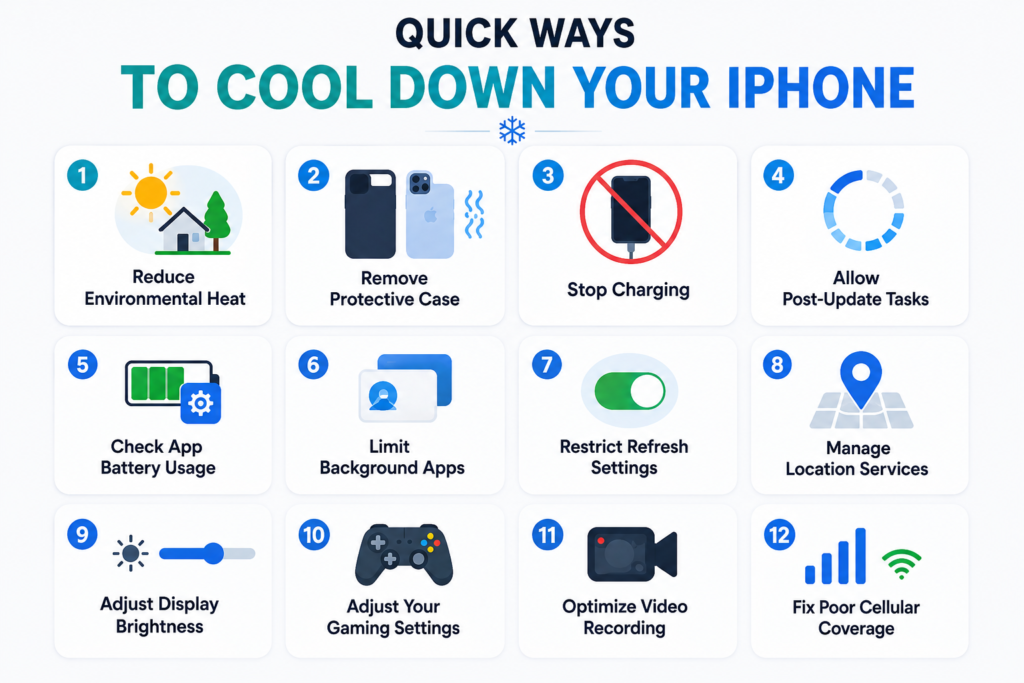
1. Reduce Environmental Heat
External ambient heat is one of the most common causes of overheating. Apple recommends that the ideal external environmental temperature for normal operation is between 0°C and 35°C (32°F to 95°F). If you use the phone outside this range, you are permanently reducing long-term battery health.
If your device gets uncomfortably hot to the touch, immediately move it indoors into a shaded area and away from glass windows or hot metal surfaces. Should the device be connected to a wall adapter or an external power bank, unplug the charger to prevent additional heat from charging.
IMPORTANT SAFETY WARNING: Do not place a hot smartphone in a refrigerator or freezer or in front of an air conditioning blast. The sudden temperature change causes moisture inside the phone to condense immediately, which can permanently short out internal sensitive components.
2. Avoid Heat Trapping Cases
Heavy, rugged or synthetic leather protective cases make it harder for heat to escape. These cases are great for protecting against impacts, but they trap the heat coming off the internal components and battery, causing heat to build up inside the device from their own thermal output.
The problem becomes worse during fast wired charging or magnetic wireless charging. If your device is always throttling or feels too hot to the touch, make it a habit to take off the protective case. Without the extra layer around the phone, heat can escape more easily through the aluminum or titanium frame, allowing the device to return to a normal temperature faster.
In real-world use, many people never consider their phone case as a source of overheating. In everyday use it’s usually not a problem, but during fast charging, gaming, or hot weather, a thick case can noticeably increase heat retention. Simply removing the case for a short period is often one of the quickest and easiest ways to help an overheating iPhone cool down.
3. Stop Charging Until It Cools Down
Modern operating systems have built-in safety protections. If you see a “Charging On Hold” alert sitting on your lock screen, the system has determined the battery has become too warm.
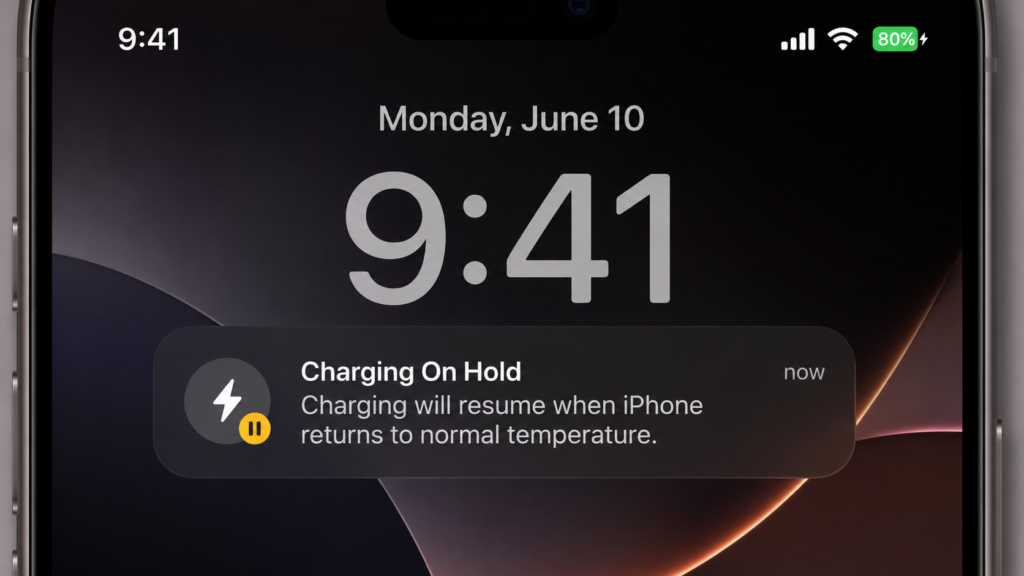
This built-in overheating protection feature automatically stops charging until the phone cools down to protect battery health. To help the phone cool down, disconnect the cable or remove the device from its MagSafe. Lock the screen so the processor can go into a lower-power state and allow the device to cool naturally for about fifteen to twenty minutes.
4. Allow Post-Update Tasks to Finish
A major iOS update often causes temporary overheating. If your iPhone feels warmer after a major iOS update, in most cases this is a normal process and no reason to worry. The phone may spend several hours processing data and completing background tasks. This additional activity can generate extra heat, but the device should cool down once the post-update optimization work is complete.
5. Check App Battery Usage
A poorly optimized app or an app stuck in a background process can keep the processor working constantly, generating excessive heat. To analyze power distribution:
Navigate to Settings -> Tap Battery -> Scroll down to the Battery Usage per App breakdown.
Check the list for apps that are using more battery than expected for how much you use them. If a non-essential background app is the reason behind the high percentage of battery drain, you can force close the app by swiping up from the app switcher. If the problem continues for several days, look for patches from the developer in the App Store or uninstall and reinstall the application to remove temporary app data that may be causing problems.
6. Limit Background Apps
Background processes are often overlooked causes of continuous overheating and battery drain. Apps that continuously use location services, sync large files to the cloud or refresh content in the background keep the processor and network hardware active.
7. Restrict Refresh Settings
Go to Settings > General > Background App Refresh and switch the toggle to Off or limit it strictly to Wi-Fi networks.
8. Manage Location Services
Go to Privacy & Security > Location Services and modify app permissions from Always to While Using App for non-essential tools.
Minimizing these passive, invisible data exchanges keeps the system in an efficient, cool state throughout the day.
9. Adjust Display Brightness
High-resolution displays on modern smartphones use more power at high brightness levels, especially when used outdoors in bright sunlight.
Reduce heat generated by the display by opening the Control Center and pulling down the brightness slider or turning on the system-wide Dark Mode interface to reduce the energy used by the display. For automatic management of the Auto-Brightness feature, go to Settings, tap Accessibility, tap Display & Text Size, then turn Auto-Brightness on. This ensures that the brightness adjusts automatically as soon as you step away from bright outdoor environments.
10. Adjust Your Gaming Settings
Mobile gaming requires significant processing power. Modern mobile games process advanced visual effects, perform real-time calculations and exchange multiplayer data in real time.
Go into the game settings menu of your favorite game and lower the graphics quality from Ultra to Medium or lock the frame rate output to 60 FPS instead of unrestricted maximums. This will help you get the most gaming time out of your hardware while generating less heat. Also, never do heavy gaming sessions while fast charging your phone, because you combine charging heat with processing heat and you create a rapid increase in heat.
In real-world experience, gaming is one of the few situations where noticeable heat is completely expected. Many modern games can push a smartphone almost as hard as a laptop pushes its graphics hardware. If you notice the phone becoming unusually warm, lowering graphics settings often has a much bigger impact on temperature than most people expect, while having only a small effect on gameplay.
11. Optimize Video Recording
The use of advanced camera systems to capture high definition or cinematic video modes pushes the image processing system to process high-resolution video data, which can quickly increase device temperature.
If you are shooting long sequences, try to take shorter clips instead of just recording continuously for a long time. Keep the phone in the shade between takes and avoid using heavy, dark-colored smartphone cages or rigs that block the phone’s ability to release heat.
12. Fix Poor Cellular Coverage
Apple lists weak cellular signals and prolonged use in poor coverage areas among the factors that can increase device temperature. If your phone is stuck in a place with poor cellular coverage or weak 5G coverage, the phone works harder to maintain a connection so it can hold a stable connection to nearby cellular networks.
This burst of transmission power rapidly drains the battery and can generate extra heat inside the device. If you are in a known location with little or no signal or a building with thick concrete walls, hook up to a local stable Wi-Fi network for your data needs or temporarily flip on Airplane Mode to prevent the phone from constantly searching for a signal
Understanding iPhone Temperature Warning
Modern iPhones have built-in safety systems, severe iPhone overheating may trigger built-in safety protections designed to protect the battery and internal components. An iPhone temperature warning appears when the device reaches a heat level that could potentially affect battery health or internal components.
| Heat Level | iPhone Behavior | What You May Notice |
|---|---|---|
| Stage 1: Performance Reduction | The iPhone slightly reduces processor performance to control heat | Minor lag, occasional stuttering, or lower frame rates in games |
| Stage 2: Screen Dimming | The display automatically lowers brightness to reduce heat and power consumption | The screen may appear noticeably dimmer, especially outdoors |
| Stage 3: Feature Restrictions | Certain features are temporarily limited, including the camera flash and some network functions | Weaker cellular performance, disabled camera flash, or reduced functionality |
| Stage 4: Temperature Warning | The iPhone displays an overheating warning and temporarily suspends normal operation | Most functions become unavailable until the device cools down. Emergency calls remain available |
If your usage displays a temperature warning, the phone has reached its critical temperature level. Turn the iPhone off completely and let it rest in a cool environment until the temperature warning disappears.
Signs of a Hardware Issue
Most iPhone overheating issues are because of software management or environmental factors, but hardware problems can also occur. If your device has any of the following behaviors, you should consider making a diagnostic appointment by contacting Apple Support.
- If the device heats up while sitting on the Home Screen with no demanding apps running, there may be an underlying hardware or battery issue.
- A rapid decline in battery level over a short period, especially during light use, can indicate a failing battery or power management problem.
- This is a serious warning sign that the battery may be swelling. Stop using the device immediately and seek professional service as soon as possible.
- If the device powers off suddenly despite having sufficient battery charge and no overheating alert, a hardware fault may be preventing it from operating normally.
- If your iPhone gets hot while charging, the battery and charging devices are usually the primary sources of heat
Certified technicians can run diagnostic tests to evaluate your battery health and check for internal hardware issues that might be causing unusual battery drain.
Long-Term Habits
Keeping your iPhone cool requires simple maintenance habits. Adopting these simple everyday habits will keep your iPhone running efficiently for longer:
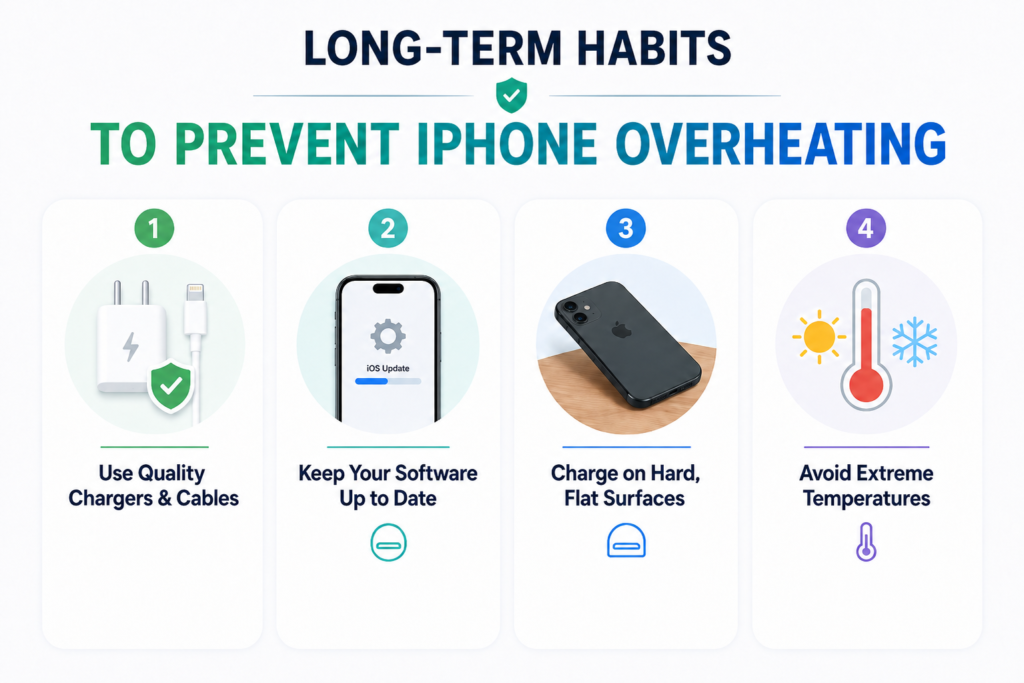
Use Quality Chargers and Cables
Use Apple-certified or reputable third-party chargers and cables that support proper USB Power Delivery standards. Apple recommends using certified charging accessories that comply with its Made for iPhone (MFi) standards for safety and reliability. Poor-quality charging accessories can generate excess heat and may not regulate power as effectively.
Keep Your Software Up to Date
According to Apple Support, devices may temporarily run warmer while completing setup, indexing, and background tasks after software updates. Install iOS updates and app updates regularly. Software updates often include bug fixes, performance improvements and optimizations that can reduce battery drain and help the device run more efficiently.
Charge on Hard, Flat Surfaces
Avoid charging your iPhone on beds, pillows, blankets, or couches, as these surfaces can trap heat around the device. Instead, place it on a desk or table where air can circulate freely and help the phone stay cooler while charging.
In my experience, long-term performance is about keeping your phone cool. If you avoid too much heat, are careful of charging the phone and give your device a break when it’s doing heavy tasks, you will notice a difference over time. Understanding the causes of iPhone overheating and these small habits not only keep performance smooth but also help long-term battery health. A little care today can help make your iPhone efficient for years.
Why is my iPhone overheating after installing a new iOS update?
When you install a new major software update, your iPhone will immediately start a series of system maintenance tasks. The system starts organizing data for the new update, processing photos and preparing apps for the new software version. This increased activity requires the processor to work harder for 24 to 48 hours, resulting in a temporary increase in temperature and faster battery consumption. Once the update-related tasks have run to completion, the phone returns to its normal temperature.
Can an overheating smartphone cause permanent hardware damage?
Yes, repeated overheating can cause permanent damage over time. High temperatures accelerate battery wear, reducing its ability to hold a charge and shortening its overall lifespan. In more severe cases, excessive heat can affect other parts of the device as well. The display may develop issues, internal components can become damaged, and the battery may begin to swell. A swollen battery is a serious problem because it can push against the screen or back panel and may pose a safety risk.
Is it safe to cool down a hot phone by putting it in the refrigerator?
Never place a warm or hot electronic device in the refrigerator or freezer. The sudden temperature change causes moisture in the air to condense inside the phone. This internal moisture can harm sensitive hardware inside the phone, resulting in permanent damage. The safest way to cool a device is to remove its protective case, turn it off completely and point a room fan to allow air to circulate around the phone.
Why is my iPhone overheat during standard 5G cellular browsing?
Using a high-speed 5G data connection requires more power from the cellular hardware than a standard Wi-Fi network. This power usage increases if you are in an area with poor cellular coverage or poor network conditions, as the phone’s antennas must work harder to maintain a connection to nearby cellular networks. This continuous power usage can generate extra heat inside the device.
Why does my iPhone gets hot while charging?
Fast charging generates additional heat because higher electrical current flows through the battery. Moderate warmth is normal, but excessive heat may indicate environmental factors, heavy background activity, or an unsuitable charger.
What does an iPhone temperature warning mean?
An iPhone temperature warning means the device has exceeded its safe operating temperature and has temporarily restricted certain functions until it cools down.