Table of Contents
Introduction
The smartphone industry changed significantly when artificial intelligence moved from the cloud, chatting with you, to being processed on the phone itself. With Galaxy AI, Samsung has invested heavily in on-device AI, creating a suite of Samsung Galaxy AI features that help users communicate, create content, and stay productive.
For years, smartphone makers have been engaged in an intense competition to stuff their software with experimental AI features. Samsung focused on everyday usefulness. The company threw itself into solving everyday productivity challenges, messy photo libraries, and batteries dying out too fast.
By 2026, Galaxy AI features will no longer be niche tools for tech enthusiasts but essential productivity tools built into Samsung phones. This deep dive will explain the key Galaxy AI features you should use daily, why they matter, how they work, and how to use them to save time.
What Exactly Is Galaxy AI in 2026?
Samsung has designed Galaxy AI features to work directly inside One UI rather than through a separate application. To understand why these features are so useful, it’s helpful to know how Samsung built in Galaxy AI. Galaxy AI isn’t a voice assistant or a single app. Instead, it is a collection of Galaxy AI tools embedded into the One UI operating system that help in understanding text, speech, and images.
One thing I appreciate about Galaxy AI is that Samsung doesn’t force users to open a separate AI app for everything. Some of the most useful features are integrated directly into apps people already use every day, such as Notes, Messages, Gallery, Phone, and Samsung Internet. In practice, this makes Galaxy AI feel more like part of the phone rather than an extra feature sitting on top of it.
How Galaxy AI Works
Understanding how Galaxy AI features work helps to explain why they feel fast and responsive. According to Samsung, Galaxy AI uses a hybrid AI system, it combines on-device and cloud-based processing.
On-Device AI
For those tasks that are processed locally and require no data, like real-time voice translation and simple text grammar correction, the device’s dedicated NPU (Neural Processing Unit) handles that locally. Your data stays on your phone.
Running advanced AI models locally requires memory resources, which is why understanding how much RAM a smartphone needs in 2026 is becoming increasingly important as on-device AI grows more capable.
Cloud-Based AI
Creating complex content, like completing the missing backdrop of a high-resolution photo or generating extensive multi-page summaries of documents, depends on secure cloud networks, which often rely on cloud services from partners such as Google.
The hybrid system keeps your phone fast and highly secure while still giving you access to advanced cloud AI models when you need heavy lifting. Whether you’re a student focused on research projects, a travelling professional juggling cross-border logistics, or a content creator who creates content professionally, Galaxy AI has tools built for your workflow.
1. Communication Tools
The best Galaxy AI features focus on solving everyday problems rather than showcasing technology for its own sake. International communication often involves translation problems, awkward pauses, translation apps and misunderstandings. Galaxy AI is making communication easier with live translation coming to the phone app and One UI.
Live Translate for Calls
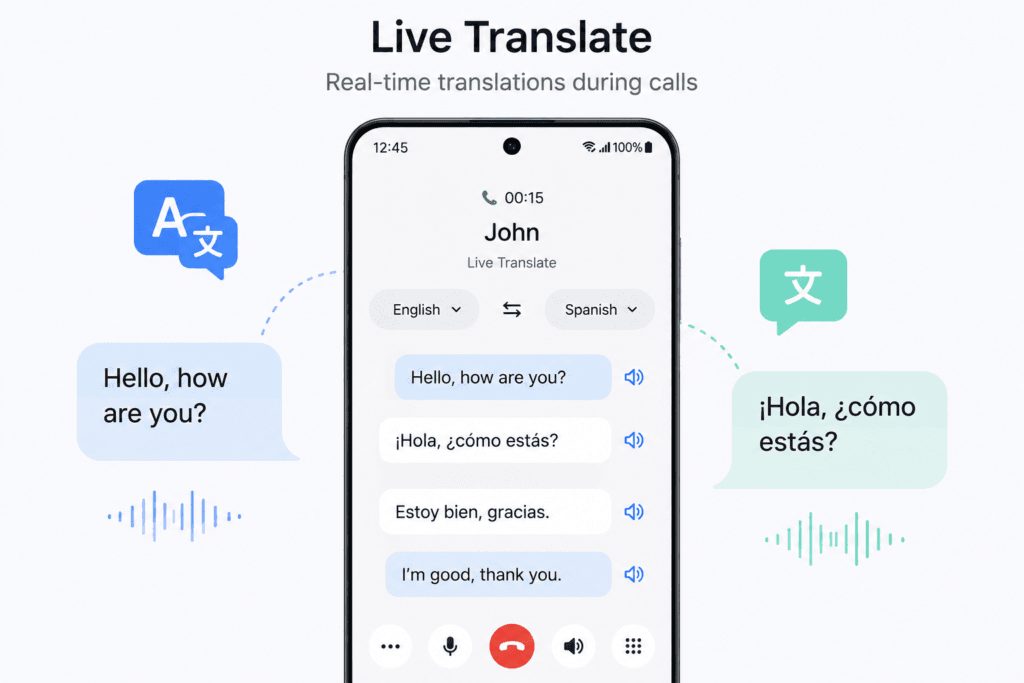
Live Translate remains one of the best Galaxy AI features for travelers, remote workers, and international business users. Samsung states that Live Translate can provide real-time voice and text translation directly during phone calls.
Think about this, you get a phone call from someone who is speaking a language you don’t understand. Language barriers can make it difficult to have a conversation, whether you’re in a hotel in a foreign country, speaking with an international client, or dealing with a business partner in another country.
That’s where Galaxy AI’s Live Translate comes in, with on-the-spot translations right inside the Phone app. Rather than switching between translation apps or moving the conversation to email, you stay on the call as translations happen in the background (Samsung).
How It Works:
When you place or receive a call as you normally would and the other party speaks in their native language, Galaxy AI analyzes the conversation and provides a clear, translated voice. When you reply in English, the AI translates in real time your speech into their native language and speaks it back to them.
Because this relies heavily on on-device processing, the delays are minimal, making conversation feel natural and easy to understand. Furthermore, a live text transcript of the translated call scrolls across your screen simultaneously, ensuring you never miss an important detail, names, addresses or key information.
From practical experience, Live Translate is most useful when you need quick communication rather than perfect translation. Whether you’re confirming a hotel booking, speaking with customer support, or communicating with an overseas client, having translation built directly into the call is far more convenient than stopping the conversation every few minutes to use a separate app.
Interpreter Mode
Interpreter Mode is another example of how Galaxy AI features remove language barriers. While Live Translate handles cellular communication, Interpreter Mode is built for face-to-face, in-person interactions. Particularly useful for travellers ordering food, asking for directions, or speaking with locals.
Pull down your quick settings panel and toggle on Interpreter Mode to split your phone’s screen into a split-screen layout. One half of the display is facing you, the other half is turned upside down to face the person opposite you.
The device listens to what you say and transcribes it to text, translating and speaking it aloud through the speakers, while displaying the text on the other side of the screen. When they answer, their text and audio appear on your side. It effectively turns your smartphone into a more natural, real-time translation tool, reducing language barriers.
2. Writing and Productivity Tools
Most people deal with a huge amount of information every day, which is why Samsung created several Galaxy AI productivity features to help manage notes, writing, and research. Galaxy AI provides a collection of productivity tools designed to summarize, organize and improve our everyday writing and communication.
Instead of replacing human work, Galaxy AI focuses on handling repetitive tasks so users can spend more time focusing on what actually matters.
Note Assist
Note Assist is one of the most powerful Galaxy AI features for students and professionals. Samsung’s own Notes app has evolved from a simple digital pad into an advanced note-taking AI-powered workspace. Many students and professionals experience disorganised notes, unrelated bullet points, rushed thoughts and half-sentences during fast-paced lectures or meetings.
Note Assist helps to organize those notes. Simply tap the Galaxy AI icon at the bottom of the screen once, and the software will analyse pages of unorganised text and perform a number of advanced functions.
- Auto-Formatting: It recognises the different topics within your notes and sorts them neatly into formal headings, clean bullet points and chronological lists.
- Intelligent Summarization: It identifies the key topics of a 5,000-word document and summarises them in a brief summary of the main points.
- Cover Generation: Note Assist makes stylized, minimalistic thumbnails and covers for your notes, based entirely on the subject matter inside, keeping your note library clean.
Writing Assist
Writing Assist is one of the most underrated Galaxy AI features available on Samsung devices. Writing on a small mobile keyboard sometimes causes an overly informal tone, typographical errors or awkward sentences.
Built into the Samsung Keyboard, Writing Assist acts as a writing assistant that works in many apps where you type, whether you are drafting a tweet, typing an SMS, or responding to professional communication.
Writing Assist is great for tone adjustment. You can highlight a paragraph you’ve just typed and ask the AI to rewrite it across multiple different writing styles.
| Professional | Refining emails, reports, or business messages with a more formal and polished tone |
| Casual | Making messages feel more conversational for friends and family |
| Social Media | Creating engaging social media captions, posts, or comments with a more approachable style |
| Polite | Softening requests, feedback, or sensitive messages to make them sound more respectful and considerate. |
From practical use, tone adjustment is one of the most underrated Galaxy AI features. Many people already know how to spell correctly, but choosing the right tone for a message is often much harder. Being able to quickly make a message sound more professional or more friendly can save time and reduce the risk of miscommunication, especially in work-related conversations.
3. Audio and Web Tools
We spend much of our time reading articles and listening to content, the articles on the web and the audio content in meetings, voice memos and podcasts. Galaxy AI can help manage both types of content with productivity features.
Transcript Assist & AI Voice Recorder
It’s time consuming to sit through a two-hour academic lecture or a long work meeting just to find a five-minute snippet. Transcript Assist showcases how Galaxy AI features can save hours of manual work. Transcript Assist turns the native Voice Recorder app into a powerful transcription tool.
When you record an audio session, Galaxy AI applies advanced voice recognition tools to identify up to ten individual speakers in a room. When the recording is finished, the AI produces a detailed transcript.
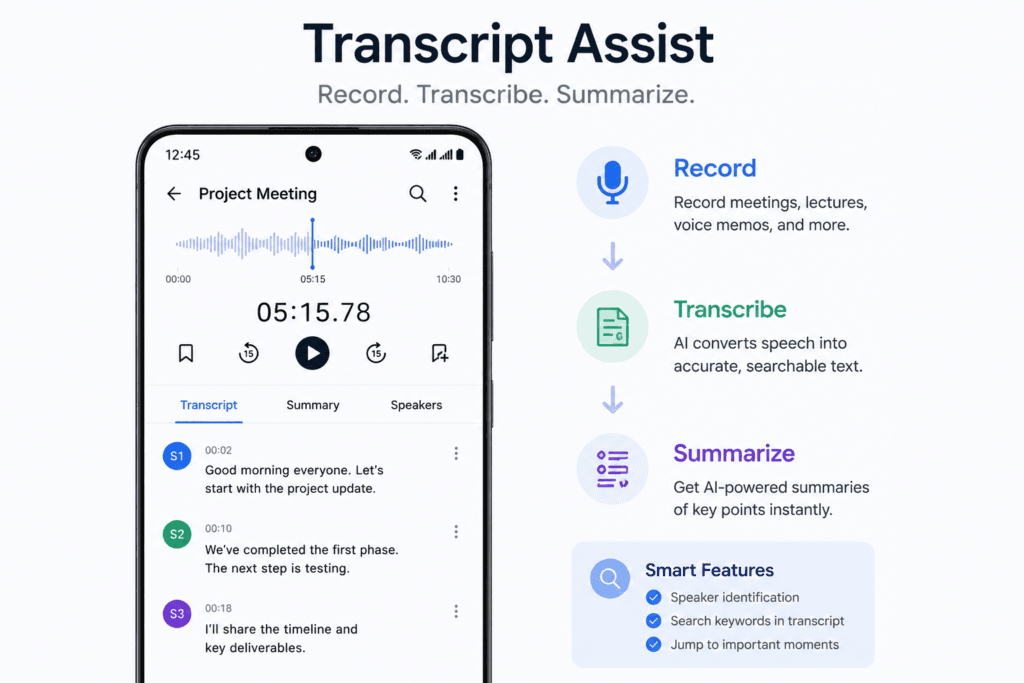
Once the transcript is produced, you can use the built-in search tool to jump straight to the moment a particular keyword was spoken or tap the summary tab to get a summary of key points that detail every major decision made during that meeting.
Browsing Assist
Browsing Assist is among the most practical Galaxy AI features for researchers and frequent readers. Researching or reading news online can take a lot of time when articles are long and detailed and have pop-up ads. Browsing Assist is integrated into Samsung Internet, Samsung’s default browser and it acts as a reading assistant.
So when you come across a long investigative article, essay or news brief, tapping the Browsing Assist icon causes the cloud-based AI to analyze the page. It takes less than two seconds to create a clean summary window with the key facts and main points. It allows you to quickly read the key facts from several web sources faster than it would take to read them using traditional methods.
In real-world use, Browsing Assist is most valuable when you’re researching a topic rather than casually browsing the web. It won’t replace reading an article in full, especially for complex subjects, but it can help identify the key points quickly. For students, professionals, and anyone who regularly reads long-form content, it can save time by helping prioritize which articles deserve closer attention.
4. Galaxy AI Camera Features
The imaging system of Samsung has always been among the strongest in the smartphone industry, but in 2026 the biggest change is what happens after you take the photo. Galaxy AI enhances photos using AI-powered processing in your camera and Gallery app, offering editing features that previously required desktop software.
Generative Photo Editing
It’s common to take a photo and later notice unwanted distractions, such as a pedestrian walking into the background, an unwanted object appearing, or the horizon line being tilted. Generative Photo Editing allows users to edit elements within an image. You can open any picture in your gallery, go to the AI edit suite and draw a loose circle around any object or person you want. You can remove, resize, or move them to another part of the frame.
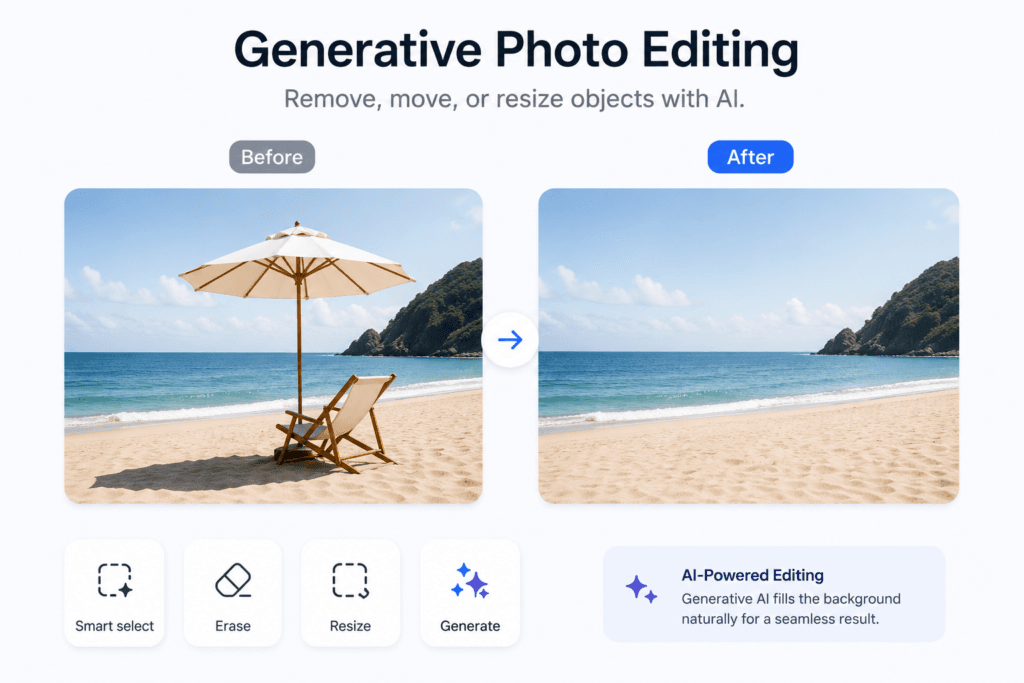
Unlike traditional object-removing tools that leave behind an ugly, blurry smudge, Galaxy AI analyze the surrounding pixels, the texture of the grass, the patterns of bricks or the gradient of the sky and uses AI to generate replacement content to cleanly fill in the empty space. The end result can often look surprisingly natural, with minimal editing traces to indicate that the photo was ever altered.
Practically, Generative Photo Editing is one of the most popular Galaxy AI features inside the Gallery app. Generative Photo Editing is one of the Galaxy AI features that people tend to use immediately. You don’t need to learn complicated editing techniques to remove a distracting object or improve the composition of a photo.
Instant Slow Motion
Capturing a dramatic action sequence, such as a pet catching a frisbee in mid-air, a child jumping into a swimming pool or a skateboarder landing a complex trick, normally requires the right camera mode. If you forgot to switch your camera app to slow motion mode before recording, you missed the chance to record it in slow motion. Instant Slow Motion demonstrates how Galaxy AI features can improve videos after recording.
Galaxy AI addresses this problem after recording. When you play back any standard video in your gallery, simply press and hold anywhere on the screen. The AI processes the video clip within seconds, analyzing motion within the video and interpolating brand new frames created by AI. These frames are procedurally generated and put into the video, making a normal 30fps or 60fps video into a smooth slow-motion video, regardless of whether the video was originally recorded in slow motion.
AI Zoom Enhancement
Digital zoom often produces lower-quality images than optical zoom, creating reduced image quality when you try to go beyond the optical limits of a physical lens. AI Zoom Enhancement is one of the camera-focused Galaxy AI features introduced by Samsung.
When you zoom in on distant subjects, such as a bird or a performer on a faraway stage, AI Zoom Enhancement automatically works in the background. The software combines information from multiple frames to merge data from multiple exposures and then uses AI models to enhance visible details. The AI intelligently improves fine details, sharpening text, hair, feathers and architectural edges to give improved image quality at long distances.
5. Background AI Features
Some of the most useful AI features operate automatically in the background and make your device more efficient over time.
Circle to Search
Circle to Search, developed in close collaboration with Google, has quickly become one of the most useful search features on Android. It has quickly become one of the most frequently used Galaxy AI features. It reduces the need for quitting your current app, launching a browser, trying to describe what you’re seeing in words and sorting through search results.
No matter what you’re doing on your phone, whether it’s watching a YouTube video, scrolling through an Instagram feed, or looking at a PDF document, you simply press and hold the home button or navigation bar. The screen dims a little, and the visual search overlay is on.
From there, you circle anything on the screen, whether it’s a pair of boots worn by an actor, a plant in the background shot or a complex maths equation with your finger or S Pen. It analyzes the selected content in your circle immediately and slides up a results panel from the bottom of your screen with shopping links, historical context, definitions or deeply relevant web articles. It connects what you see on your screen with the Google Search results.
From my experience, Circle to Search is one of the Galaxy AI features that feels immediately useful. Most people encounter things online that they want to identify, buy, translate, or learn more about. Being able to search directly from the screen without switching apps removes several steps from the process and makes information easier to access. For many users, it quickly becomes a feature they use almost every day.
Battery & Performance Optimization
Battery life remains one of the most important parts of the smartphone experience. Galaxy AI automatically manages the optimisation of the physical hardware based on daily usage patterns. The AI Battery Optimisation system is not about setting fixed schedules for power saving. Instead, it constantly learns your individual behaviour over a rolling multi-week period.
- It recognizes when the device is typically used, when you commute and when you settle down for demanding tasks such as gaming or video rendering.
- It detects when you are busy or asleep and dynamically puts unused apps into a sleep state.
- It scales back aggressively when the phone is sitting in your pocket, but it also adjusts processor performance and the variable refresh rate of the screen so that it adjusts performance based on workload.
Over time, this intelligent adaptation results in significantly prolonged battery health and remarkably consistent daily screen-on time. As Samsung continues to improve its software ecosystem, Samsung Galaxy AI features are becoming a major reason people choose Galaxy devices.
While Galaxy AI is designed to improve efficiency, some users wonder whether advanced AI systems can impact performance during heavy workloads. We explored this issue in our guide on whether AI features are slowing down Android phones.
The Future of Galaxy AI
Looking further, Future Galaxy AI features will likely become more proactive and personalized. New chips are making on-device AI more capable, enabling more on-device processing, which leads to lower power consumption and better privacy safeguards.
AI may gradually reduce the need to navigate through multiple menus to find individual apps, slowly coming to an end. As Galaxy AI continues to evolve, your device is getting smarter about what you want to do next, translating text before you ask it, summarising documents as they arrive in your inbox, and effortlessly organizing content and notifications in the background.
If you’re using a modern compatible Samsung flagship device, it’s worth exploring these features. Circle to Search is fun to play around with, so spend an afternoon trying it out, running a few voice transcripts or tweaking your email tones with Writing Assist. Once these features become part of your daily routine, using a regular and non-AI smartphone will feel like a noticeable decline in performance.
In my perspective, Galaxy AI is at its best when it removes small frustrations rather than trying to replace the user. The most successful features are often the ones that save a few minutes, such as summarising a document, translating a conversation, organizing notes, or finding information more quickly. Those small conveniences add up over time and are what make AI feel genuinely useful in everyday life.
Do I have to pay for Galaxy AI features?
No, the basic features are free. Samsung has recently clarified its policy, replacing its original “free through 2025″ footnote with a clear statement: “Galaxy AI basic features provided by Samsung are free.” This includes nearly all daily tools such as Circle to Search, Live Translate, Note Assist, Interpreter Mode, and Generative Photo Editing. Samsung has said that it will charge for completely new “enhanced AI services” or “advanced tools from third parties” in the future.
Which Samsung devices support Galaxy AI?
Most modern flagship devices support Samsung Galaxy AI features, although some tools may vary depending on hardware capabilities. This list includes:
Galaxy AI is supported on devices ranging from the new Galaxy S26 and S25 lineups to the Galaxy S24 and S23 series (including the FE models), as well as the Galaxy Z Fold, Z Flip devices, and the Galaxy Tab S10 and Tab S9 series.
Note: Some older or mid-range “A-series” devices may have limited support for some on-device tools due to processor hardware limitations.
Does Galaxy AI work without an internet connection?
Yes, but only for certain features. Samsung combines on-device and cloud processing that divides processing between on-device and cloud servers:
Offline (On-device): Some features such as Live Translate, Interpreter Mode, and basic text editing/grammar checking are processed locally on your phone’s Neural Processing Unit (NPU). They don’t need internet and your data stays on the device.
Online (Cloud-Based): The more demanding AI features, such as Generative Photo Editing, Browsing Assist and text-to-image creation, all require an active internet connection to send information to cloud servers for processing.
How do I turn on (or turn off) Galaxy AI features?
Most Galaxy AI features are enabled by default during initial device setup, but you have customization options over them. You can find, customize or disable them by navigating to:
Settings > Advanced Features > Advanced Intelligence (or Galaxy AI).
From this menu, you can also toggle a privacy setting called “Process Data Only on Device”, which limits cloud-based AI processing to cloud servers, effectively turning off cloud-based AI features while keeping offline tools active.
Is Samsung’s Bixby assistant dead, or does it use AI now?
Bixby is not dead; it has actually received major AI upgrades. Bixby primarily focuses on device management, while Google Gemini handles general web searches on Galaxy phones. It operates locally without an internet connection, can remember context during conversations, and can diagnose or fix specific device settings using voice commands.